Friday, June 15, 2012

eiPower Saver Power Events explained

Some information on how eiPower tracks the power state of computer's and monitor's

The eiPower Saver Agent records a computer's and monitor's power state by generating a series of power events. There are 5 different power event types that the eiPower agent can generate with each type corresponds to a different power state combination of the computer and monitor. The meaning of these 5 event types are listed below. 


Power On (Id : 5)

This event means that both the computer and monitor(s) are powered On.


Power Off (Id : 4)

This event means that the computer is powered Off and the monitor is Off (or in Standby depending on the type of monitor)


Hibernate (Id : 3)

This event means that the computer is in Hibernate and the monitor is Off (or in Standby depending on the type of monitor)


Standby (Id :  2)

This event means that the computer is in Standby and the monitor is in Standby


Monitor (Id : 0)

This event means that the computer is powered ON and the monitor is in Standby.

Note : There is no Id : 1 event.
 
The following table shows a summary of the power states :
 
Event Type
Event Id
Computer State
Monitor State
Power On
5
On
On
Power Off
4
Off
Off (or Standby)
Hibernate
3
Hibernate
Off (or Standby)
Standby
2
Standby (Sleep)
Standby
Monitor
0
On
Standby


Only these 5 types are necessary as they cover all the meaningful power states of the computer/monitor. Other states not in this list are not possible (or are transient) and hence have no event type. For example, it is not necessary to have an event to represent when the computer is Off and the monitor is On, because when the computer turns off any attached monitors will automatically go into a low power state.

The eiPower agent generates a power event each time there is a change to the power state, Offsite state (if enabled) or Battery state of the computer or monitor. The new power event represents the new power state of the computer/monitor.

Each power event sent from the eiPower agent has the following attributes :
 
Attribute Name
Description
_ResourceGuid
Guid of the computer sending the event
Type
Id of one of the event types described above
Start
Date/time when this power event started
Time
Date/time when the power event ended
Duration
Duration in seconds of this power event (this just the difference between the Start and End dates measured in seconds.
Offsite
If Offsite detection is enabled this indicates whether or not the computer was Offsite at this time
Running On Battery
Indicates whether or not the computer was running on battery at this time


eiPower Saver events are stored in the Evt_ei_PowerEvents table.

The agent stores the list of power events locally and then send them to the SMP server at least once every 24 hours.

In normal operation the eiPower agent will generate a continuous set of power events without any gaps or overlaps. That is, the agent will send power events where the Start date (Start attribute) of each event will be equal to the End date (Time attribute) of the previous power event. This ensures that we know the power state of the computer and monitor at all times and can perform our energy usage, cost and CO2 emissions accurately. 

When there are power events where the event's end date is not equal to the start date of the previous event we say that we have a gap in the data or unknown period. These gaps will occur if the eiPower agent service is shutdown or if there is a problem on the server (such as a licensing error) and the event data is not being loaded into the CMDB. Gaps will not occur when the computer is allowed to shutdown normal, however they may occur if the computer shuts down unexpectedly.

Computer Power Events log

To view the Power events generated by a computer you can right click on the computer and select eiPower Saver > Power Events Report. This report shows the list of power events generated by the selected computer over a specified time period.

The Power Events Report will look like the following :


From this report you can see the changes in the power state of the computer and monitor over time. From looking at a single event it is only possible to determine what the computer's and monitor's power state is between the event's start and end times. In order to see the changes in the computer's and monitor's power states it is necessary to compare each event with its previous event.

From the events show above we can deduce the following power state transitions have occurred :
  1. Computer and monitor are both initially Off 
  2. Computer and monitor are turned On
  3. Computer and monitor remain On.
    Note; not all events represent a transition in state - in some situations events are generated when no power state transition has occurred - this is normal.
  4. Computer and Monitor went into Standby
  5. Computer woke up but Monitor remained in Standby.
    This condition typically occurs when the computer wakes due to a schedule wakeup - rather than a user waking the computer up.
  6. Monitor wakes up 
  7. Computer and Monitor go into standby


Tuesday, May 29, 2012

eiPower Reports Data Source Error


Error Details

An error has occurred during report processing. (rsProcessingAborted)
Cannot create a connection to data source 'DataSource1'. (rsErrorOpeningConnection)
For more information about this error navigate to the report server on the local server machine, or enable remote errors

Figure 1. eiPower Reports Data Source Error


Cause

This error is caused when incorrect Database Connection credentials are entered when the eiPower Saver Reports are published into the Microsoft Reporting Server.

On the report publishing page (Figure 2) it is necessary to specify the Database Connection Credentials These are the credentials that are used by the Microsoft Reporting Server to connect to the Symantec_CMDB database.  The error above indicates that there is a problem with the credentials that have been specified.

Note. The Report Publishing may still succeed even when invalid Database Connection Credentials have been specified.

This problem is most commonly caused by an attempt to use the Use Trusted Connection option when the Microsoft Reporting Server is not configured to run with an account that has connection to the Symantec_CMDB database. In most environments the Use Trusted Connection option will not work and will result in the error seen above.

The other common cause of this error is to select the Use SQL Credentials option and to enter Windows account credentials rather than SQL Server Login credentials. The Database Connection Credentials section requires that a SQL Server Login credentials be specified, there is no support for entering Windows credentials. See below for a manual workaround if the use of a SQL Server Login is not possible.

Figure 2. eiPower Report Publishing Page


Instructions for use of Windows credentials for Data Source

If use of Windows credentials rather than a SQL Server login is required then it is possible to use the Microsoft Reporting Server's own UI to configure the Data Source credentials. This can be done in the following way
  1. Go to the eiPower Report Publishing page (Figure 2) and publish the reports to your Reporting Server. In the Database Connection Credentials select the Use Trusted Connection option. Ensure that the Reports Publish without errors by checking the Report Publishing log by clicking on the Click here to view the MSSRS Report Publishing log file link
  2. Open the Reporting Server Web UI by opening the following URL in a browser. http:///Reports
  3. Click on the eiPowerSaver folder link.
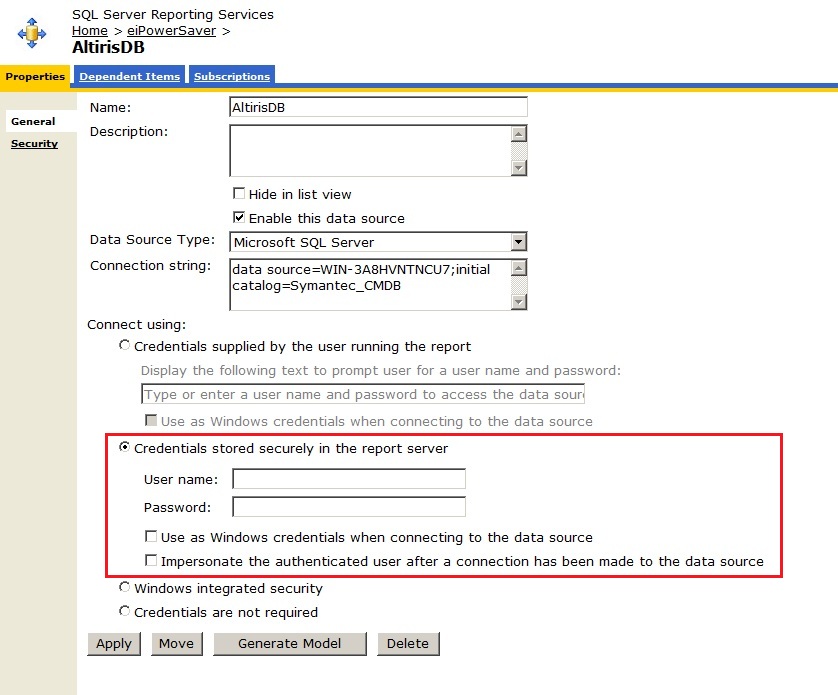
  4. Click on the AltirisDB data source link to open the Data Source edit page (Figure 3)
  5. Select the Credentials stored securely in the report server option (marked in red in Figure 3) and enter the Windows credentials into the User Name and Password fields.
  6. Check the Use as Windows credentials when connecting to the data source option
  7. Click Apply

Figure 3. MS Reporting Server Data Source Edit Page


Sunday, January 8, 2012

Offsite Detection

When measuring the power usage of laptops we need to consider the question of where the laptop is located at any point in time and hence who's power is being used to power the device. The offsite detection feature allows you to configure the eiPower agent to determine when a laptop is On-site (that is, operating within your organisation's buildings) or Off-site (such as when someone takes their computer home to do some work)

When the Off-site detection feature is enabled and configured the eiPower agent includes an On/Off site status on each power event sent to the server. Each of the eiPower saver reports contain a parameter that allows you to specify whether you want the report to include or exclude Off-site power events.

Offsite detection is configured by specifying one or more IP address ranges that contain all the IP addresses used in your organisation. For example, if your organisation uses the following subnets :

42.5.1.255
42.5.2.255
42.5.3.255
42.100.1.255
42.100.2.255

Then you would specify the following address ranges as your On-site address ranges:

42.5.1.1 - 42.5.3.255
42.100.1.1 - 42.5.100.2.255

Whenever a computer's IP address lies within one of these ranges then the computer is considered On-site, otherwise it is Off-site.

Notice that it is not necessary to specify an IP address range for each subnet in your organisation, it is only necessary to specify ranges that cover all the IP addresses. Additionally it does not matter if you specify IP ranges that cover a few IP addresses not used by your organisation - these will have no affect on the Offsite detection.

The eiPower agent only checks the IP address of the computer's ethernet and wireless network adaptors - all virtual adaptors are ignored. This ensures that a laptop that is connected via VPN to an organisation's network is not considered On-site.

The use of IP Address ranges to determine On/Off site status is a simple and effective mechanism for performing Offsite detection that does not introduce any addition network traffic.

Issue with use of Private IP Ranges


An issue can arise when an organisation uses the same IP address ranges that are typically used by home networks. In these situations, care must be taken when configuring Offsite detection to ensure that the eiPower agent does not incorrectly report devices as being On-Site when they are being used from someone's home or a public internet location.

The default configuration for your typical home modem/wireless device issues IP Addresses starting from either 192.168.0.1 or 10.0.0.1. Hence when a user is using their laptop at home they will generally have an IP address in the following ranges :

192.168.0.1 -> 192.168.0.10
10.0.0.1 -> 10.0.0.10

When the eiPower Offsite detection is configured is it important not to specify an IP Address range that includes the above IP address as doing so will cause the eiPower agent to report a computer as being On-site when it is actually being used from a user's home. Although there may be a few On-site computers that have an address in the above ranges which will get incorrectly reported as Offsite, these will be very small in number and will have a minimal affect on the report results.

Offsite Detection Changes in Adelaide Update 2


One of the major features in the Adelaide Update 2 release is an extension to the Offsite detection feature so that the eiPower agent is able to use the computer's DNS server as well as its IP address when determining if a computer is On/Off site.

The Offsite Detection Policy page has been updated to allow you to specify a list of DNS server addresses as well as the list of IP address ranges.

The agent have been updated to use the follow algorithm to determine if a computer is On/Offsite :

If the computer has no active ethernet or wireless adaptors then the computer is ON-SITE
Otherwise if one or more DNS addresses have been specified and the DNS address of the computer's ethernet or wireless adaptors is NOT in the list of DNS addresses then the computer is OFF-SITE
Otherwise if one or more IP address ranges have been specified and the IP address of the computer's ethernet or wireless adaptors is NOT within one of the IP address ranges then the computer is OFF-SITE.
Otherwise the computer is ON-SITE

Monday, December 19, 2011

eiPower Saver Solution for Mac

Enterprise Infrastructure Partners is currently working on a release of eiPower for Mac computers. This is a new solution that will extend all current eiPower Saver Solution functionality to Mac computers. The release is now in Beta testing and should be ready for release soon.

Tuesday, April 5, 2011

Dublin Agent released

The Dublin agent has been released and it is recommended that all new installations of eiPower use this agent. The Dublin agent is designed to work against both NS 6.0 and NS 7.0 versions of the Altiris Core Agent and hence any pre Dublin version of the eiPower Saver Agent can be upgraded to Dublin.

The Dublin agent is available as a separate download directly from the ENTISP website and is not available on the Symantec Installation Manger (SIM). This means that in order to rollout the Dublin agent it is necessary to first install eiPower from the SIM, then download the Dublin agent from the ENTISP website, replace the agent installation files on the server and then update the agent rollout policy. Instructions on how to replace the agent package files and update the agent rollout policy are available on the ENTISP download site.

Wednesday, September 8, 2010

eiPower Proof of Concept

When considering an energy savings product such as eiPower many organisations want to do a Proof of Concept (PoC) during of their product evaluation. An important part of most PoCs is achieving an estimate of the amount of energy and money that will be saved by implementing the product across their organisation.

eiPower contains a number of features to assist in performing a PoC including the 'Proof of Concept Report' which clearly shows the savings that an organisation will achieve by implementing eiPower.

In order to do a PoC with eiPower the following steps are recommended;

  1. Install eiPower Saver Solution
    Go to the Symantec Installation Manager and install the eiPower Saver Solution onto your SMP.

  2. Create a PoC Collection
    Identify the PCs that are taking part in the PoC and create a collection containing only these PCs.

    The computers in your baseline should, as much as possible, be a true representation of the mix of computers that exist in your organisation.

  3. Rollout the eiPower Agent
    Enable the eiPower Agent Rollout task and apply it to the PoC collection created above.

  4. Establish a Baseline
    A baseline is a record of the power usage patterns in your organisation before any power policies are applied. To establish the baseline leave the eiPower agent installed for at least 2 week with the eiPower Agent Configuration policy DISABLED. With this policy disabled the eiPower agent will collect power events from your client computers but will not apply any power policies.

    Note :

    • The longer the baseline period the better as it will be more accurate.

    • The baseline period only starts once the eiPower agent is installed onto all computers in the PoC.

    • The baseline period should represent typical (or normal) energy usage in your environment before power management is introduced and hence users should not change their behaviour during this period. e.g. users should not start turning their PCs off at night it they were not doing so previously.

    • The baseline period should not include periods where there are unusual events such as significant outages or public holidays.

    • Enter Wattage, Pricing and CO2 values
      Enter values for Model Wattage data, Power pricing and Power CO2 emissions. See earlier post on the recommended way to get started with this data.

    • Establish a Comparison
      After collecting at least 2 weeks of baseline data, enable the eiPower Saver Agent Configuration policy and apply it to your PoC collection. Set the Power Scheme to your desired times for Monitor Off, Standby and Hibernate. With this new policy applied allow the eiPower agent to collect the new power usage patterns for a period at least as long as your baseline period.

    • Publish the eiPower Saver Reports
      In order to run the reports in eiPower it is necessary to publish these into your MS Reporting Server. This is done using the eiPower Report Publishing page. Full instructions are provided in the documentation.

    • Run the PoC Report
      In the parameters for this report set the following;

      • Collection = PoC Collection

      • Start Date = Start of your Baseline period

      • End Date = End of your Comparison period

      • Policy Enabled Date = Date that you enabled the eiPower Agent configuration policy (step 6. above). This must be between the Start Date and End Date.

      • Count of Computer = the Number of computers in your organisation that you are considering installing eiPower agent onto.

      This report shows you the average daily energy usage, cost and CO2 emissions for your PoC group during the Baseline and Comparison periods. It also shows the average daily saving during the Comparison period versus the Comparison period. These results are then used to calculate the savings figures for all computers in your organisation for a full year.

      Hence this report will use the data gathered during your PoC to give you an estimate or the total energy, cost and CO2 savings that you can achieve by implementing eiPower across your organisation.

    Thursday, July 29, 2010

    eiPower Saver Tokyo is released

    Tokyo release of eiPower is finally released!

    Originally this release was planned to be a small release designed primarily to port the Auckland functionality onto the NS 7 platform and to add better Windows 7 support. However the release grew a bit from this original plan and we have added a number of new features.

    The release should be available in the SIM in a few days.

    Saturday, June 26, 2010

    PowerMessageReflector.dll

    I had a support question recently that concerned the PowerMessageReflector.dll and I thought it might be a good idea to outline what this is and what it does.

    When Windows puts the PC's monitor into standby it first sends a message to the top most window indicating that the monitor is about to be put into Standby. Windows sends this message (called SC_MONITORPOWER) in order to give this foreground window a chance to prevent Windows putting the monitor into standby. This is important because when some application are running, such as a Power Point slide show, you do not want the monitor to power down.

    This message is also useful for eiPower because it allows the agent to know when windows is putting the monitor into standby. Unfortunately because Windows only send this message to the foreground window the eiPower agent does not normally receive this message. To overcome this problem the eiPower agent hooks the the PowerMessageReflector.dll into all processes in order to monitor for and relay any SC_MONITORPOWER messages received. This DLL is hooked using the standard Windows mechanism and since the DLL does so little does not have any impact on the system performance.

    Without this message hook DLL the eiPower agent is not able to reliably get the state of the monitor. However in versions of the eiPower post Auckland the eiPower agent now polls the monitor every 60 seconds and can generally correctly determine the monitor's power state. Hence the role this hook DLL is not as important as it once was.

    Having said that, I recently received a support call regarding a problem with the PowerMessageReflector.dll. The problem was due to a complicated environment issue and after considering the problem for a while I decided that the easiest fix would be to allow them to disable the hooking of the PowerMessageReflector.dll.

    This change is available in releases post Tokyo and all that is needed is to delete the PowerMessageReflector2.dll from the agent installation directory. Note : Do not try this on versions before Tokyo - you will probably crash the eiPower agent.

    Tuesday, June 1, 2010

    Effective wins with Green IT

    VMWare are really pushing the whole Green IT thing as a significant reason to move to a virtualised environment. I saw this statement on the VMWare website recently (http://info.vmware.com/content/GreenIT_LP)

    'Every server virtualized saves 7000kWh of electricity annually, or about $700 in energy costs.'

    If true this is a significant saving and yet another very compelling reason to move to server virtualisation. While for most organisations energy savings may not not be the primary reason for switching to a virtual environment it is another easy way to justify the move.

    An organisation will typically have around 10-100 desktops for every server and hence similar or great greater savings can be made by implementing energy savings on the desktop than by virtualising servers.

    For every desktop that implements energy savings up to 400 kWh can be saved. This figure does not include savings in the air conditioning required to remove waste heat generated from desktops - I would be surprised if the VMWare figure above did not include air conditioning savings. Hence for every 20 desktops implementing power savings you can save at least as much as virtualising a server.

    Taken together the savings that can be achieved by, virtualising servers, implementing desktop power management and the resultant reductions in air conditioning costs can add up to a very large amount of money.

    Sunday, May 30, 2010

    eiPower verses Windows Power Management

    A common question that gets asked is why do you need a power management solution when modern operating systems have power management functionality builtin.

    While these inbuilt Power Management facilities works well for a small number of computers they become difficult to use in larger organisations. eiPower does not replace the Window's Power Management functionlity but instead adds an additional layer of functionality that helps IT Administrators implement power management without disrupting the end user or preventing normal IT operations.

    The following are a few reasons why a power management product such as eiPower Saver Solution can be useful :

    1. Ability to quantify savings.
    One of the biggest advantages to using an energy savings product such as eiPower is the ability to measure energy usage, cost and CO2 emission before and after power savings initiatives have been implemented. From this data total savings can be calculated and the success of the energy savings project can be determined. Additionally this data is necessary to qualify for most of the energy savings rebates being offered by utilities.

    2. Loss of ability to do scheduled afterhours maintenance tasks.
    When computers are simply allowed to go into Standby or Hibernate when they become idle (e.g. when users go home at night) using the Windows's power settings it is difficult to perform scheduled after hours maintenance activities such as patching, virus scanning, defrag and backup. Now days applying patches is a critically important IT activity and if not done after hours needs to be done during working hours which can disrupt the user.

    eiPower can wake computers at the schedule maintenance time, then ensure that the computer remains powered on during the entire maintenance period and will then place the computer back into standby/hibernate/power off after the maintenance period is finished. Because eiPower is built on the Symantec Management Platform it integrates with other End Point Management solutions such as Patch Management and Software Delviery to ensure that computers are woken up at the correct time to ensure that Patches and Software can be devliered.

    Once eiPower saver solution is installed it is recommended that Administrators discourage end users from turning off their computers at the end of each day. Powering off a computer prevents it from being able to wake to perform scheduled maintenance activities. Instead users are encouraged to place the computer into Standby or Hibernate at the end of the day if they wish to (of course if they don't eiPower will do it)

    3. Disruption to the user during working hours.
    There are many situations where it can be disruptive to end users to put their monitor or computer into standby during business hours. For example, computers being used for Point of Sale (POS) devices or presentation devices generally should not be placed into standby during the day however they can be placed into standby during the night and weekends.

    eiPower is able to target different groups of computers with separate power policies and each policies can be configured to set different power schemes during different times of the day and week.

    For example using eiPower a policy can be created that targets only POS devices and sets the computer's power scheme so that the computer will not go into standby from 7am to 7pm Monday to Friday, while at all other times the power scheme will be set so that the computer will go into standby after say 30 minutes of inactivity.

    4. Some Applications don't play well with Standby/Hibernate
    Some applications deliberately prevent computers from going into standby while others do not like being placed into standby at all. While generally applications that prevent Windows from putting the computer into standby have a good reason for doing this some can prevent computers from ever going into standby and result in a lot of wasted energy unnecessarily. Also some applications that do not prevent the computer going into standby, should do so because they sometimes generate errors once they have returned from standby (e.g. MS Access can lose access to data files located on network drives)

    eiPower will detect when a computer has not gone into standby at the expected time because there is an application preventing Window's from placing the computer into standby. eiPower can then force the computer into standby if required. Additionally the administrator is able to set exclusions for certain applications such that when any of these applications are running the computer does not get put into Standby/Hibernate.